This guide creates a virtual machine in the dashboard: a name, a size, a boot disk from an image, a network
interface and a cloud-init login. Every step shows the dashboard first, then the equivalent YAML for kubectl.
The objects behind a VM are described in VirtualMachines Resources.
Before you start
- A namespace you can create VMs in. The dashboard creates the VM in the namespace you are working in.
- An Image under Storage > Images: an HTTP or S3 URL, a container registry image or an existing PersistentVolumeClaim that holds a disk image. The VM’s boot disk is copied from it.
- A VPC with a Ready subnet, or a ready Underlay Subnet, under Network. Every VM needs at least one network interface, and each interface needs a subnet. See VMs Network Assignment.
- Optional: an SSH Key under Security, so cloud-init can install your public key instead of a password.
- Instance types and operating system presets. The installer deploys KubeVirt’s common instance types and
preferences by default (
kubevirt.commonInstancetypesDeployment.enabledin the configuration guide).
Step 1: Open the form
Go to Compute > Virtual Machines and choose New VM.
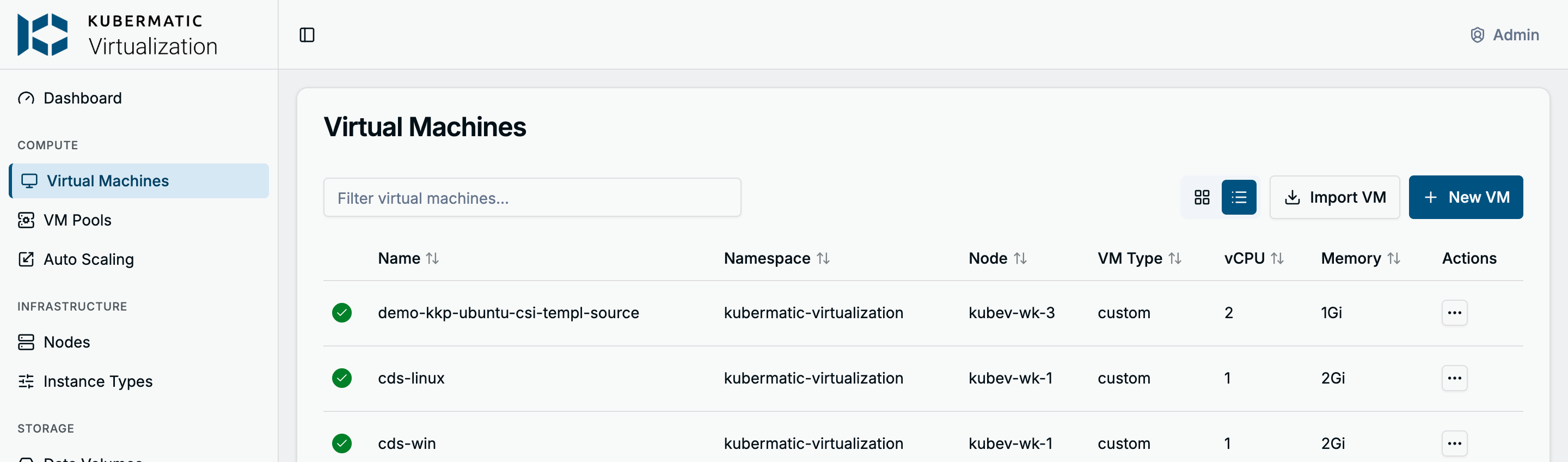
The form is one page. The Sections list on the right shows what each section currently holds and jumps to it. Create VM sits in the page header, and nothing is created until you choose it.
Step 2: Name, placement and operating system
| Field | What to enter |
|---|---|
| Name | Lowercase letters, digits and -, at most 63 characters, unique in the namespace. The VM’s hostname is the same. |
| Node | Auto-select lets the scheduler place the VM and allows live migration (on storage that supports ReadWriteMany). Pin a node only when the VM must run there. |
| Run Strategy | Always starts the VM right after creation and restarts it when it stops. Halted creates it stopped. Manual, Once and RerunOnFailure are the KubeVirt run strategies of the same name. |
| Operating System Preset | The operating system the disk image contains. Pick one when you can. |
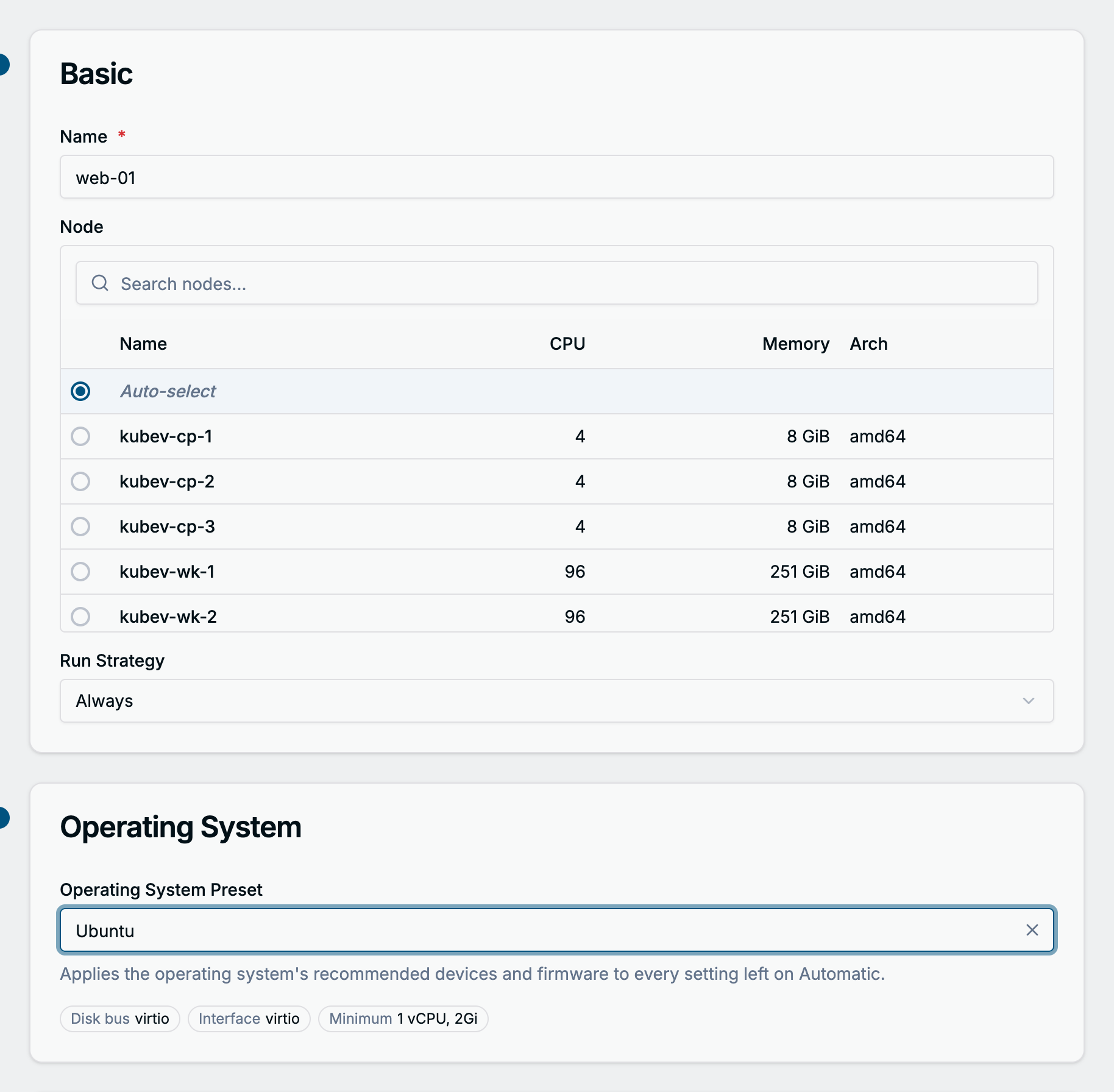
A preset is a KubeVirt cluster preference. It sets the disk bus, network interface model and firmware for everything you leave on Automatic, preselects a matching image in the first disk, and shows its minimum CPU and memory below the field. A size below that minimum is refused when you create the VM.
Metadata adds labels and annotations. Both land on the VM and on the pods it runs in.
The same with YAML
apiVersion: kubevirt.io/v1
kind: VirtualMachine
metadata:
  name: web-01
  namespace: kubermatic-virtualization
spec:
  runStrategy: Always
  preference:
    kind: VirtualMachineClusterPreference
    name: ubuntu
kubectl get virtualmachineclusterpreferences
Step 3: Choose a size
CPU / Memory offers two ways to fill the required VM Type.
Instance type: the CPU and GPU tabs list the cluster’s instance types with their vCPU count, memory and, on the GPU tab, their GPUs. The second line of each name is its series, such as Universal (burstable CPU, 1 vCPU to 4 GiB) or Compute Exclusive (dedicated CPUs with hugepages). Search by name or series, sort any column, and pick a row. The selection shows above the tabs.
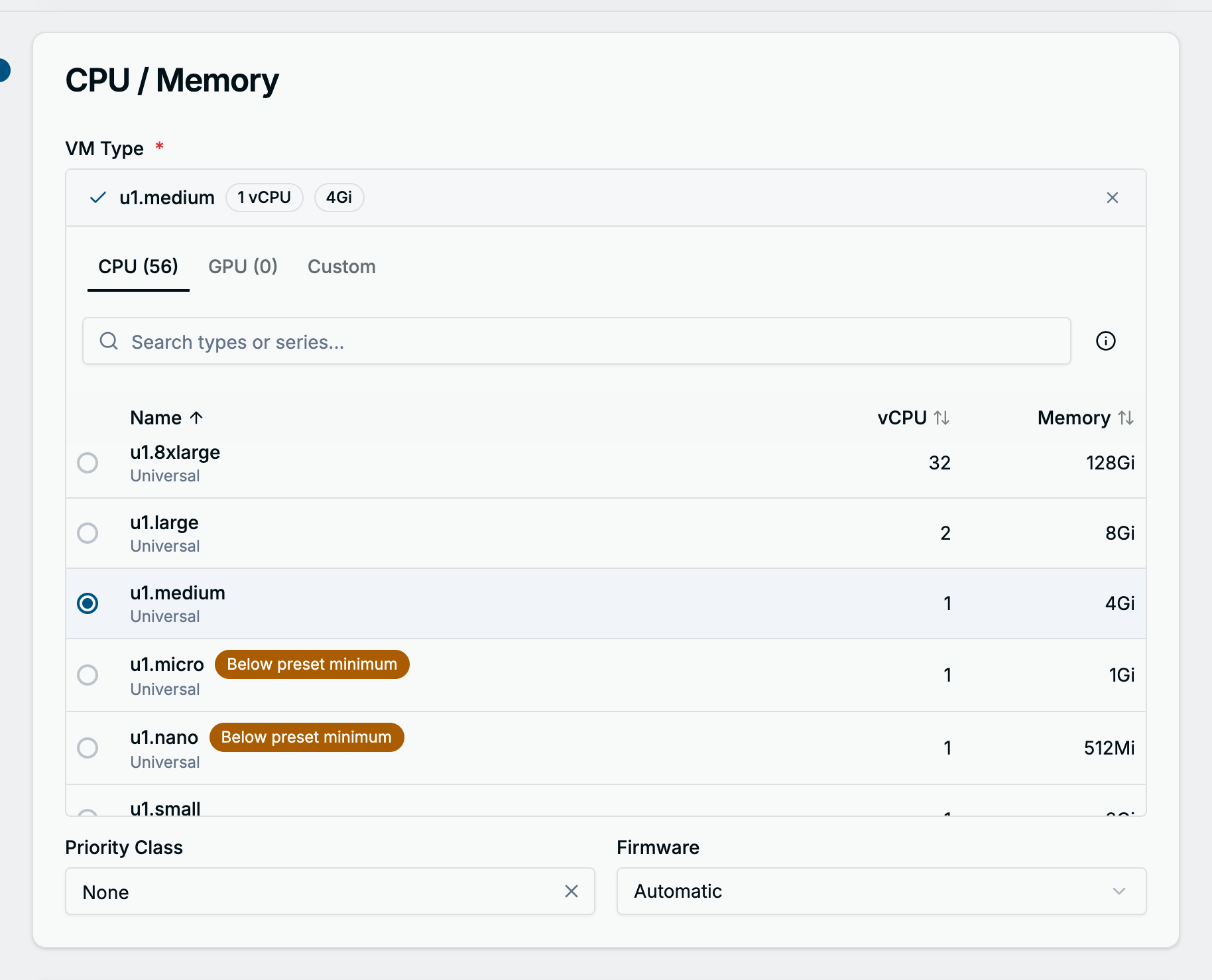
Two badges can appear next to a name:
- Below preset minimum: smaller than the operating system preset requires. Creating the VM with it fails with “Below the preset minimum”.
- No fitting node: the type needs dedicated CPUs or hugepages that no schedulable node provides. Selecting it shows This instance type may not schedule with the missing feature. Creation is not blocked, but the VM stays unschedulable until a node provides the feature. Enable the kubelet’s static CPU manager policy or reserve hugepages on a node, or pick another type.
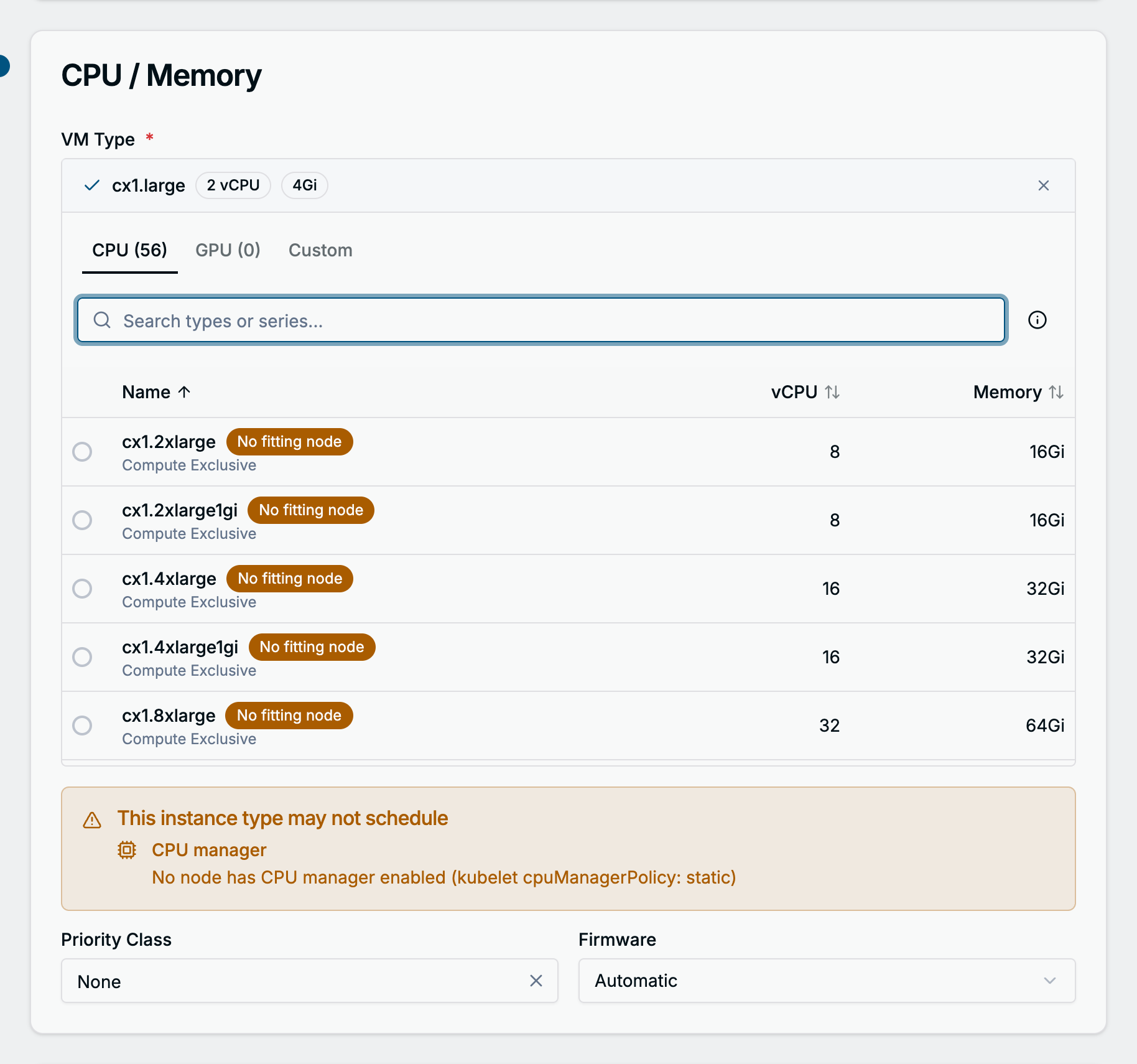
A VM that cannot be scheduled says so on its page: a Cannot be scheduled banner with the scheduler’s message and the likely causes. A stopped VM whose instance type fits no node shows This VM may not start, and Start asks for confirmation.
Custom: enter Sockets, Cores, Threads and Memory (GB) yourself. The Custom tab is also where GPUs are attached: Add GPU, pick the Device from the devices the cluster permits (or type the resource name when none are advertised), keep or change the Name, and set a Count. vGPU Display turns on the virtual display of one GPU, for guests that need a GPU-backed display.
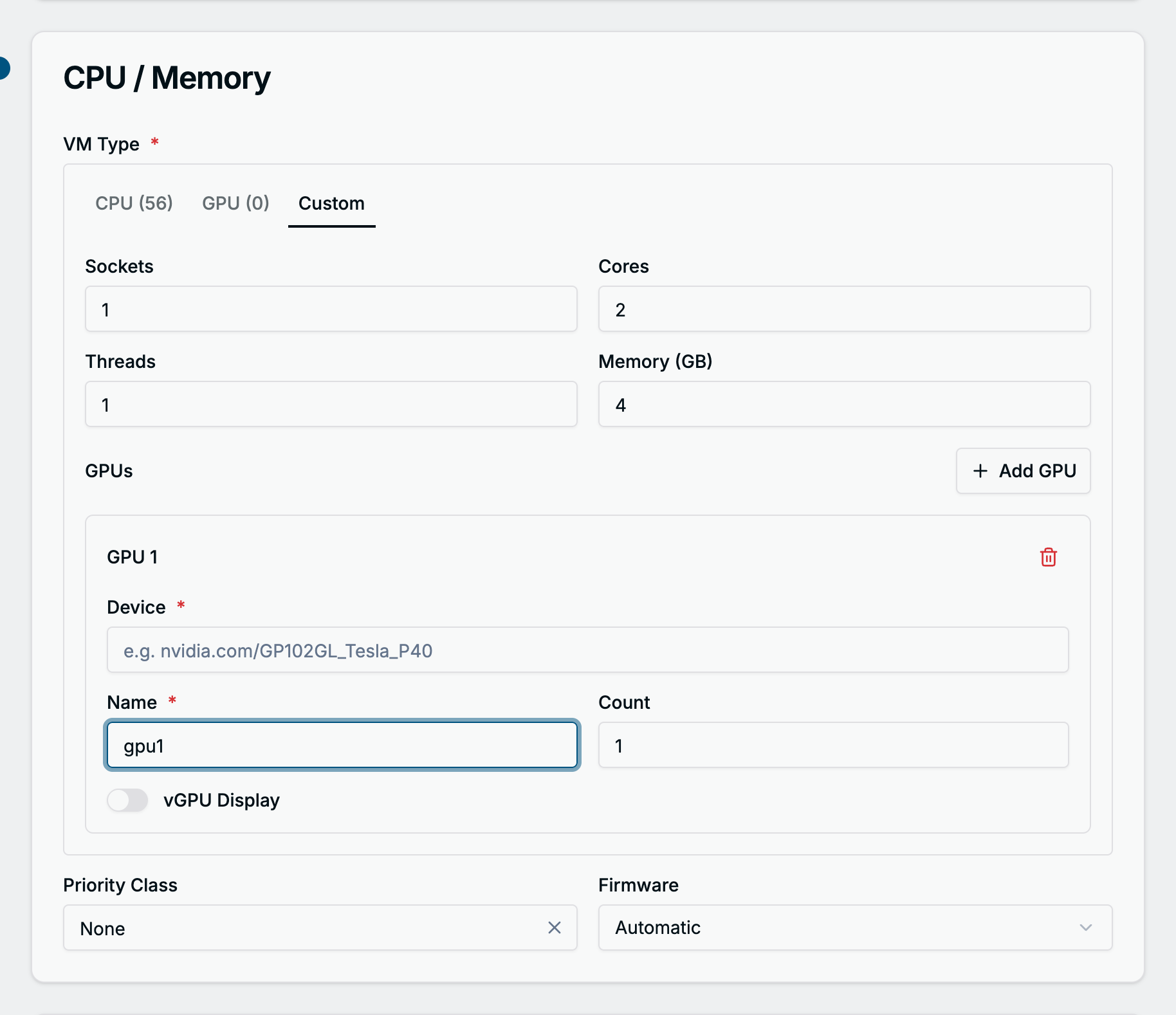
Priority Class and Firmware (Automatic, BIOS or UEFI, with a Secure Boot switch for UEFI) sit below the size.
The same with YAML
spec:
  # Instance type
  instancetype:
    kind: VirtualMachineClusterInstancetype
    name: u1.medium
spec:
  # Custom size with one GPU, instead of spec.instancetype
  template:
    spec:
      domain:
        cpu:
          sockets: 1
          cores: 2
          threads: 1
        resources:
          requests:
            memory: 4Gi
        devices:
          gpus:
            - name: gpu1
              deviceName: nvidia.com/GP102GL_Tesla_P40
kubectl get virtualmachineclusterinstancetypes
Step 4: Disks
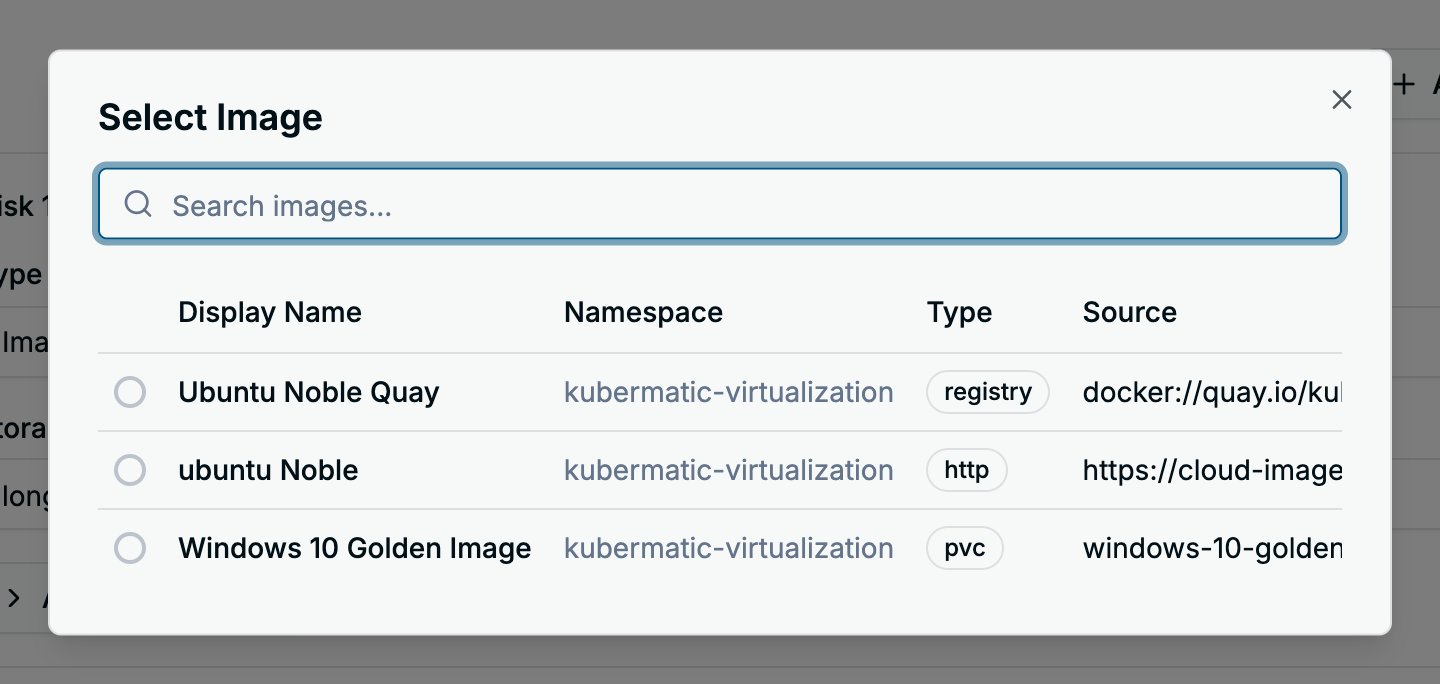
The form starts with one disk of type Image. Choose Select image… and pick an image of the namespace.
| Field | What to enter |
|---|---|
| Type | Image copies an image into a new disk. Blank creates an empty disk. DataVolume attaches an existing DataVolume as it is. |
| Size (GB) | The disk size, at least as large as the image. Not editable for an existing DataVolume. |
| Storage Class | Prefilled with the cluster’s default storage class. |
| Boot Order | Unique per disk. The lowest boots first. |
Advanced options holds the Access Mode, Volume Mode, Bus and Cache of the disk. On Automatic the storage class’ StorageProfile decides access and volume mode, and the operating system preset decides the bus. The form warns when the storage class has no StorageProfile capabilities; set the modes explicitly then.
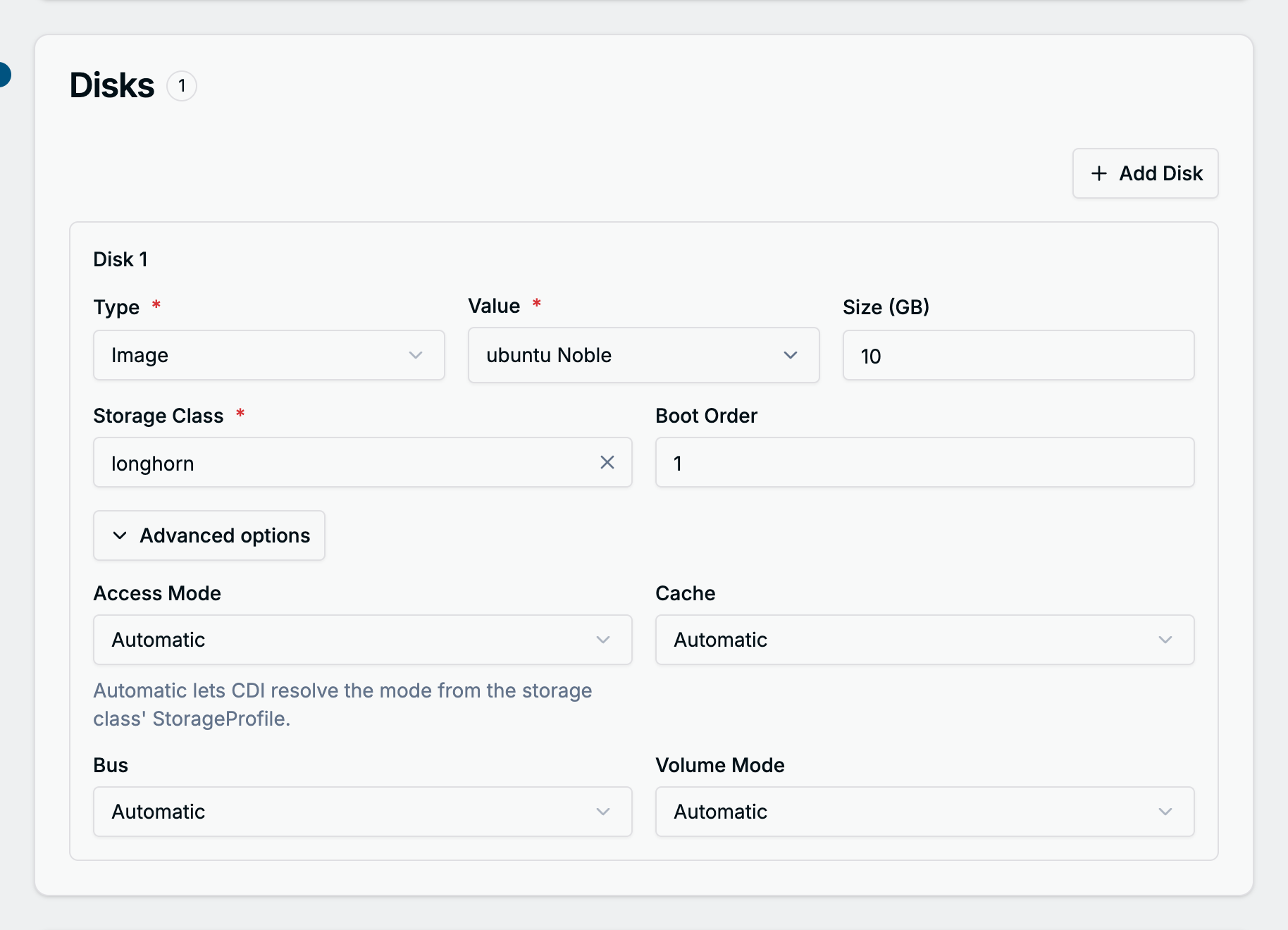
Add Disk adds a second disk with the next boot order. The dashboard creates one DataVolume per Image or
Blank disk, named <vm name>-disk<n>, before it creates the VM. The disks of an existing VM are managed on its
Disks tab.
The same with YAML
A DataVolume copies the image into a PersistentVolumeClaim. The dashboard creates it as a separate object;
with kubectl you can embed it in the VM as a dataVolumeTemplates entry, as in the full example at the end.
apiVersion: cdi.kubevirt.io/v1beta1
kind: DataVolume
metadata:
  name: web-01-disk0
  namespace: kubermatic-virtualization
spec:
  storage:
    storageClassName: longhorn
    resources:
      requests:
        storage: 10Gi
  source:
    http:
      url: https://cloud-images.ubuntu.com/noble/current/noble-server-cloudimg-amd64.img
kubectl get datavolumes -n kubermatic-virtualization
Step 5: Networking
The form starts with one empty NIC. Nothing is preselected: pick a VPC and then a Subnet of that VPC on the Overlay tab, or a ready Underlay Subnet on the Underlay tab. The subnet’s default gateway appears under the field, and the VM gets an address from the subnet when it starts.
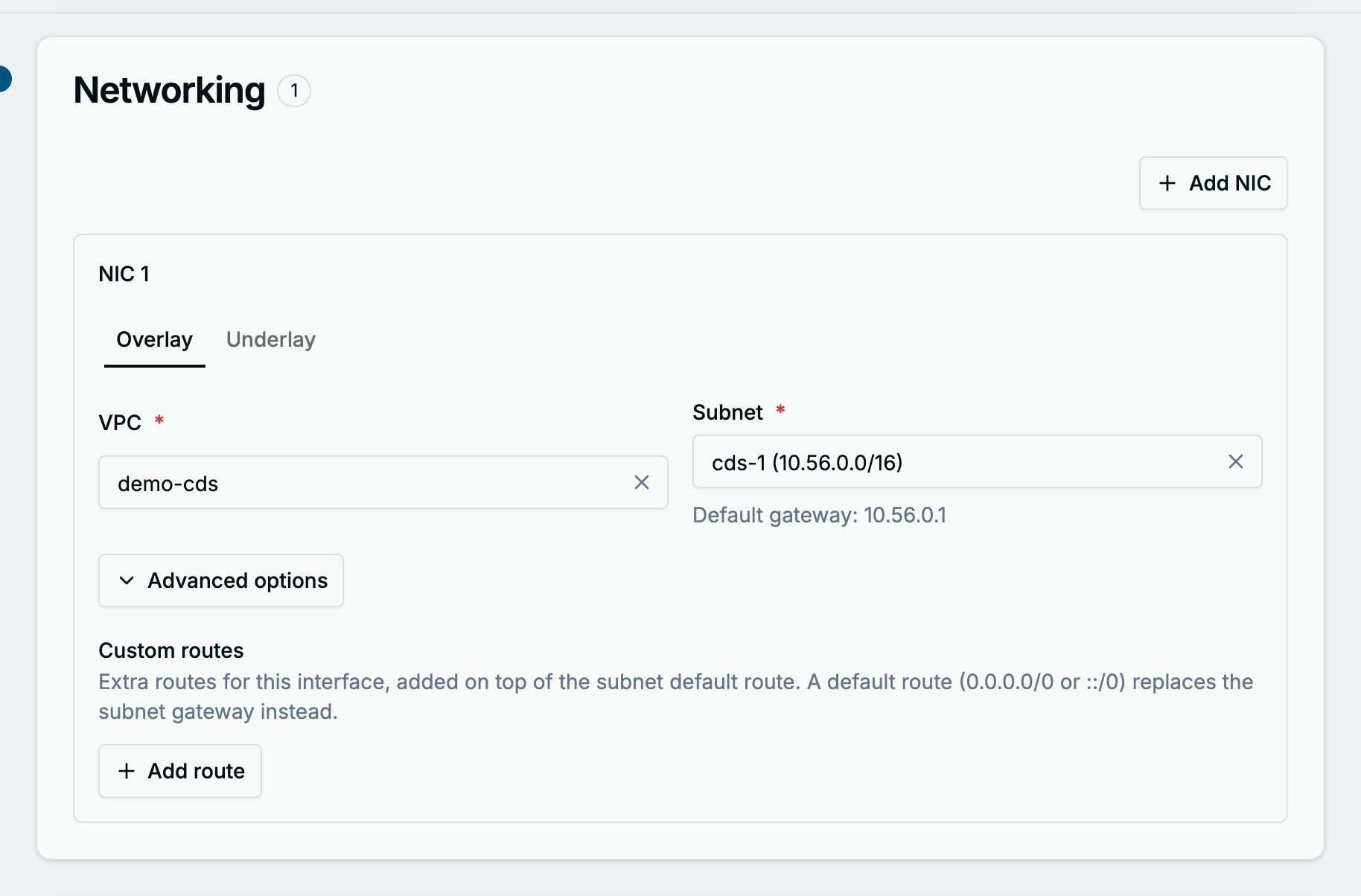
Advanced options holds Custom routes: extra routes for this interface on top of the subnet’s default
route. A route to 0.0.0.0/0 or ::/0 replaces the subnet gateway instead.
Add NIC attaches another subnet; a subnet can be used by one NIC only. The first NIC is the VM’s default network.
The same with YAML
Each NIC becomes a Multus network on the subnet’s NetworkAttachmentDefinition, and the pod template names the subnet in a Kube-OVN annotation. VMs Network Assignment explains how to find the NetworkAttachmentDefinition and the real name of a subnet.
spec:
  template:
    metadata:
      annotations:
        kubermatic-virtualization-cds-1-sn.kubermatic-virtualization.ovn.kubernetes.io/logical_switch: kubermatic-virtualization-cds-1-sn
    spec:
      domain:
        devices:
          interfaces:
            - name: net0
              bridge: {}
      networks:
        - name: net0
          multus:
            networkName: kubermatic-virtualization/kubermatic-virtualization-cds-1-sn
            default: true
Step 6: Cloud-init
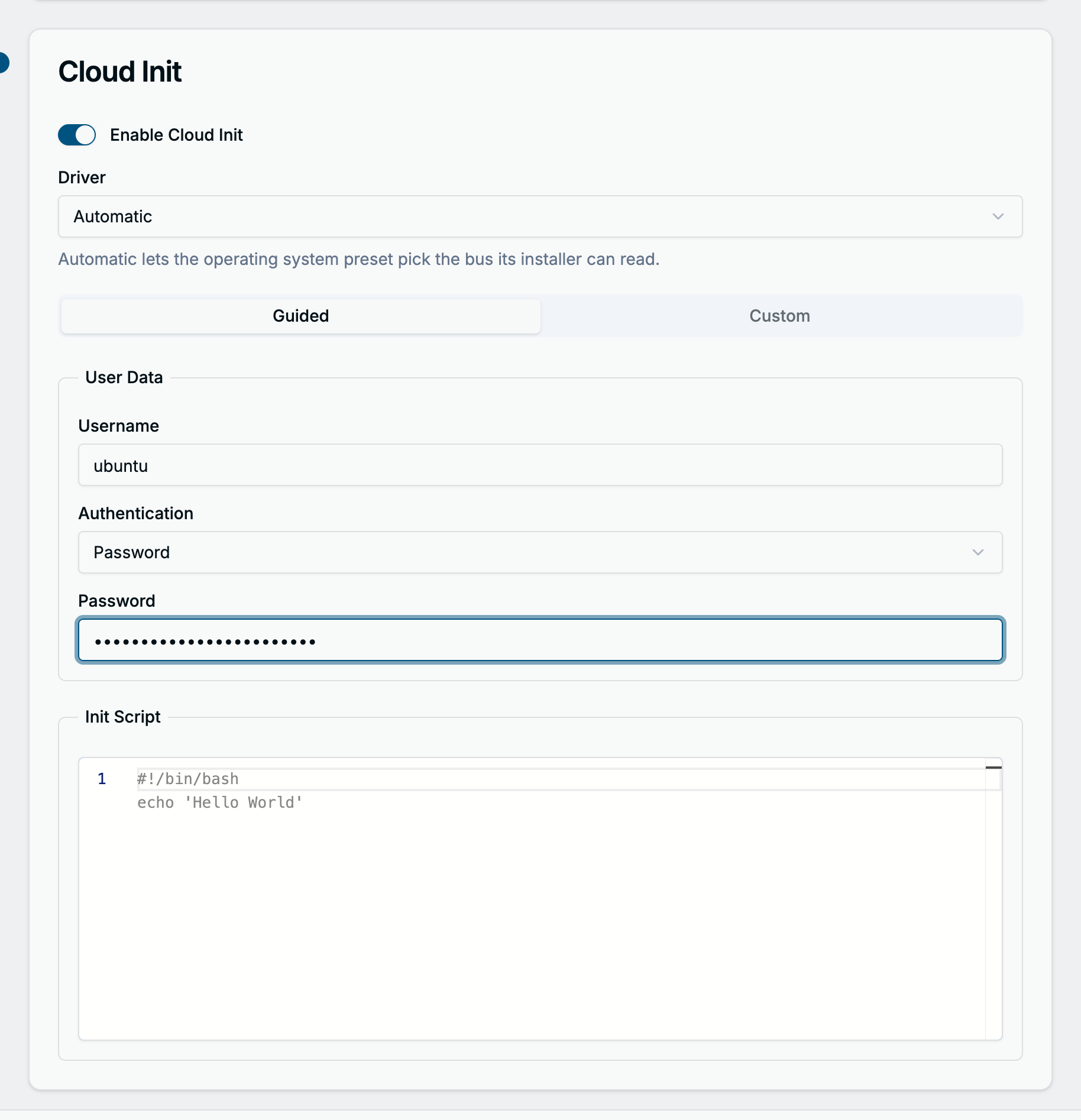
Cloud Init is enabled by default and runs once, on the VM’s first boot. Driver is the bus of the cloud-init disk; leave it on Automatic unless the guest cannot read it.
Guided asks for a Username and either a Password or an SSH Key from the SSH Keys page, and takes an Init Script that runs line by line at the end of the first boot. The user gets passwordless sudo. Without a username no user is created, and the VM has no login. A password is stored in plain text in the VM definition and expires at the first login, so prefer an SSH key.
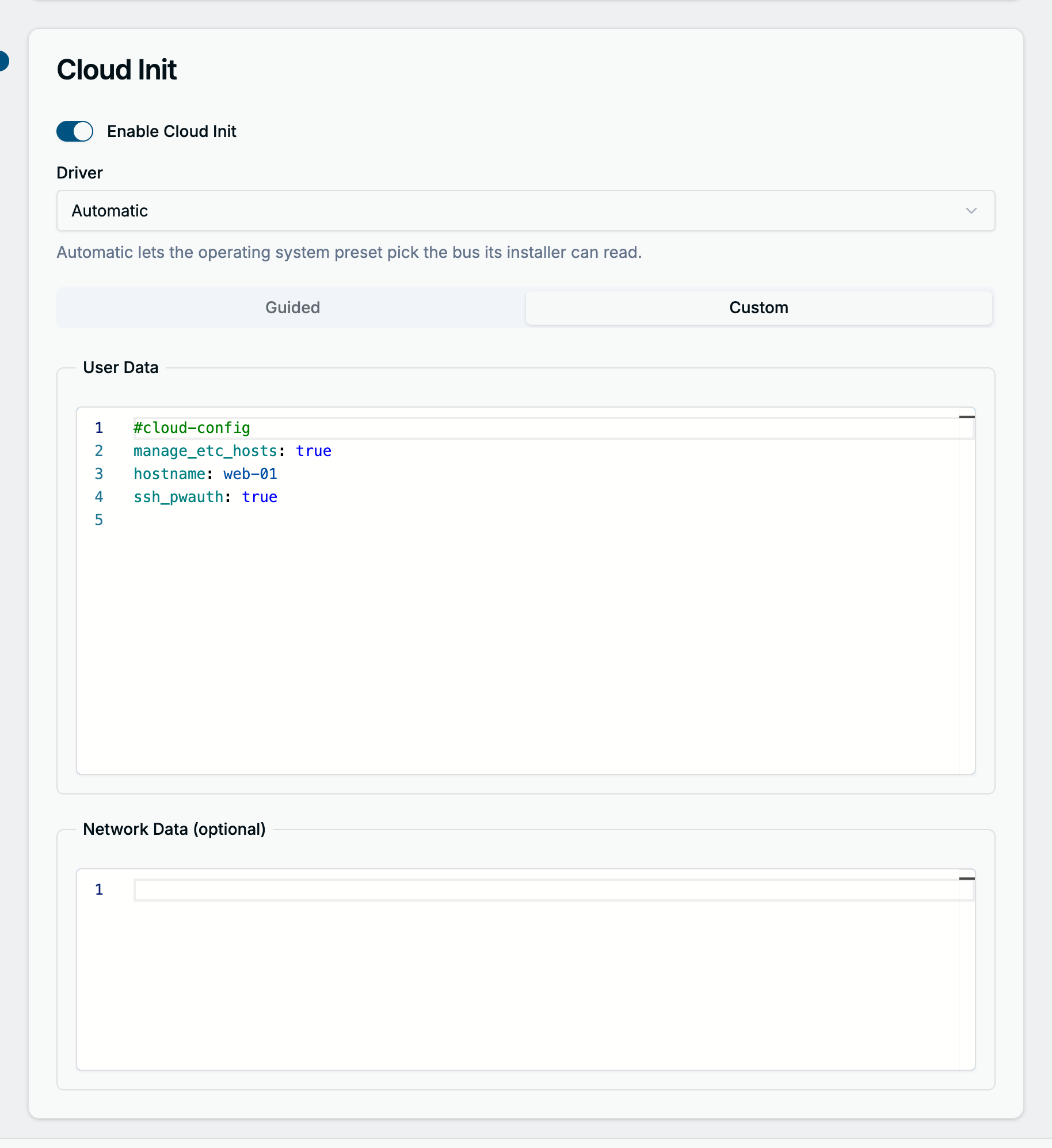
Custom shows the full cloud-init User Data and an optional Network Data document in a YAML editor with validation. Switching to Custom fills the editor from the guided values, so an existing cloud-config can start from there. Once you edit the text, the form never overwrites it.
The same with YAML
spec:
  template:
    spec:
      domain:
        devices:
          disks:
            - name: cloudinitdisk
              disk: {}
      volumes:
        - name: cloudinitdisk
          cloudInitNoCloud:
            userData: |
              #cloud-config
              hostname: web-01
              manage_etc_hosts: true
              users:
                - name: ubuntu
                  sudo: ALL=(ALL) NOPASSWD:ALL
                  shell: /bin/bash
                  ssh_authorized_keys:
                    - ssh-ed25519 AAAA... user@example.com
              runcmd:
                - apt-get update
Optional: Edit as YAML
Edit as YAML in the page header shows the VirtualMachine manifest the form would create, generated from everything you filled in so far, and lets you change it in a YAML editor before creating. Use it for settings the form has no field for.
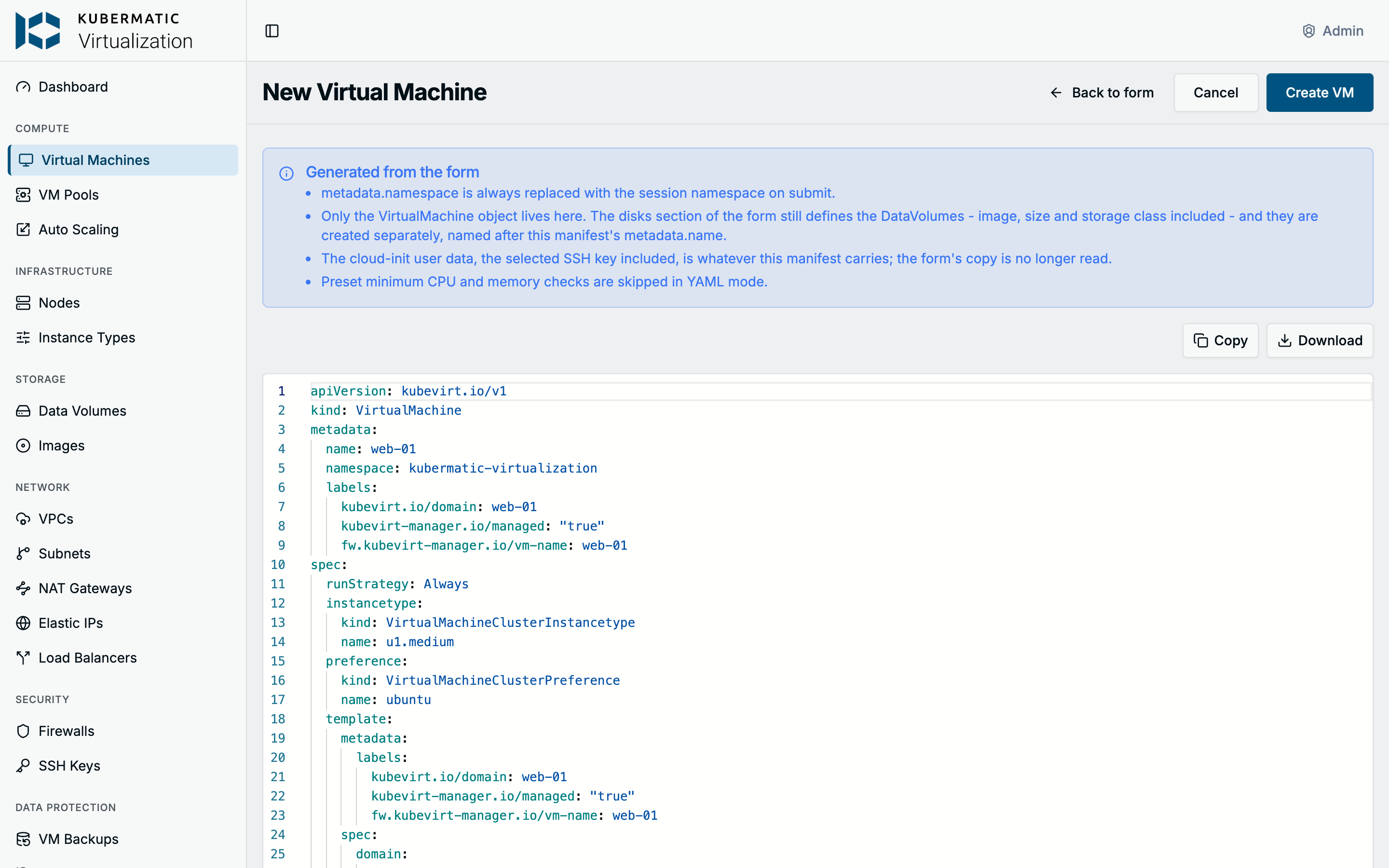
What applies in YAML mode:
- Your edits are created only while YAML mode is open. Back to form keeps them, but as long as the form is open it is the form’s values that are created.
- Only the VirtualMachine lives in the editor. The disks and their DataVolumes still come from the Disks
section and are named after the manifest’s
metadata.name. - The cloud-init user data is whatever the manifest carries; the form’s copy is no longer read.
metadata.namespaceis always replaced with the namespace you work in.- The dashboard skips its preset minimum check, but KubeVirt still rejects a VM below the minimum.
Copy and Download export the manifest for kubectl.
Step 7: Create the VM
Choose Create VM. The dashboard checks the name, creates the DataVolumes, then the VirtualMachine, and opens the VM’s page. With Run Strategy on Always, the VM boots as soon as its disks are imported.
The same with YAML
A complete VM from the steps above, with the boot disk as a DataVolume template. Replace the subnet names with the real name of your subnet.
apiVersion: kubevirt.io/v1
kind: VirtualMachine
metadata:
  name: web-01
  namespace: kubermatic-virtualization
spec:
  runStrategy: Always
  instancetype:
    kind: VirtualMachineClusterInstancetype
    name: u1.medium
  preference:
    kind: VirtualMachineClusterPreference
    name: ubuntu
  dataVolumeTemplates:
    - metadata:
        name: web-01-disk0
      spec:
        storage:
          resources:
            requests:
              storage: 10Gi
        source:
          http:
            url: https://cloud-images.ubuntu.com/noble/current/noble-server-cloudimg-amd64.img
  template:
    metadata:
      annotations:
        kubermatic-virtualization-cds-1-sn.kubermatic-virtualization.ovn.kubernetes.io/logical_switch: kubermatic-virtualization-cds-1-sn
    spec:
      evictionStrategy: LiveMigrate
      domain:
        devices:
          disks:
            - name: disk0
              disk: {}
              bootOrder: 1
            - name: cloudinitdisk
              disk: {}
          interfaces:
            - name: net0
              bridge: {}
      networks:
        - name: net0
          multus:
            networkName: kubermatic-virtualization/kubermatic-virtualization-cds-1-sn
            default: true
      volumes:
        - name: disk0
          dataVolume:
            name: web-01-disk0
        - name: cloudinitdisk
          cloudInitNoCloud:
            userData: |
              #cloud-config
              hostname: web-01
              manage_etc_hosts: true
              users:
                - name: ubuntu
                  sudo: ALL=(ALL) NOPASSWD:ALL
                  shell: /bin/bash
                  ssh_authorized_keys:
                    - ssh-ed25519 AAAA... user@example.com
kubectl apply -f web-01.yaml
kubectl get vm,vmi,datavolumes -n kubermatic-virtualization
Use the VM
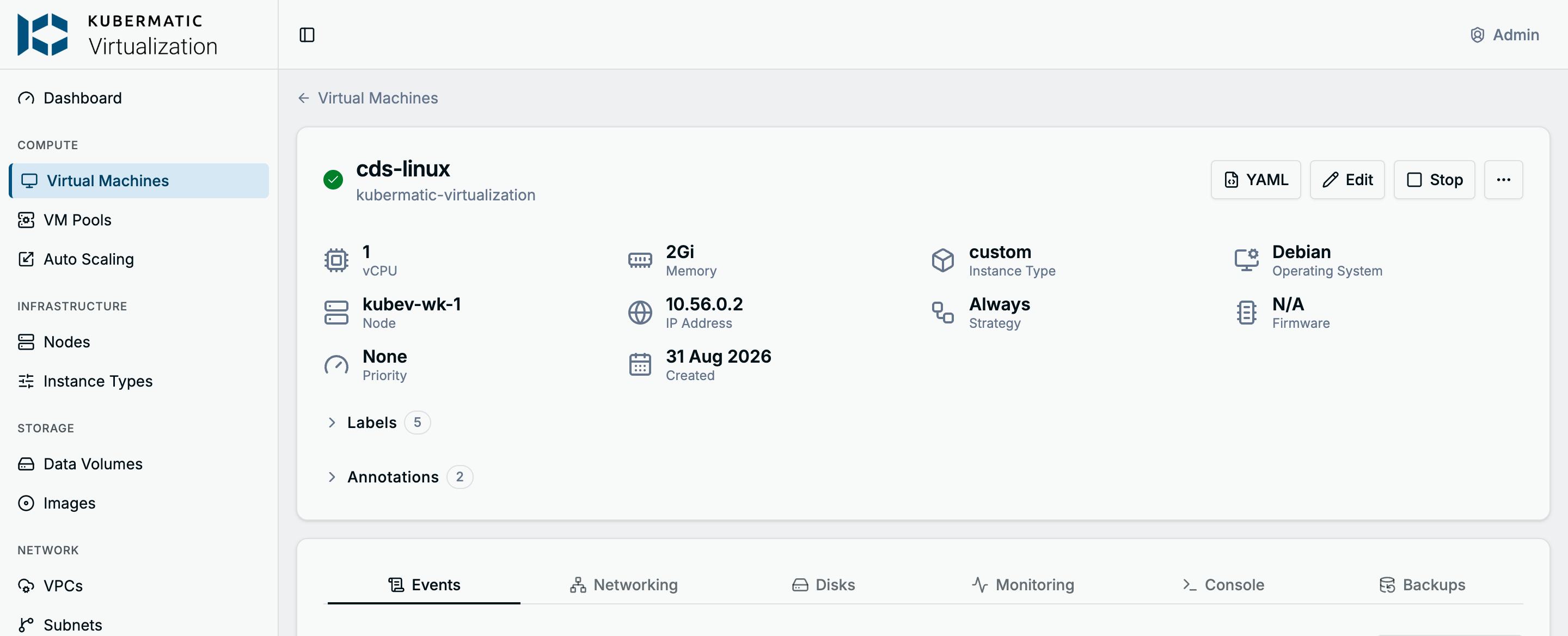
The VM’s page shows its status, size, node and IP address. Stop, Start and the … menu with Restart, Pause, Migrate and Delete are in the header. The Console tab opens a VNC console in the page, with a Serial console as an alternative; the Networking and Disks tabs list the interfaces and disks, and Events shows what Kubernetes did with the VM.
virtctl console web-01 -n kubermatic-virtualization
virtctl stop web-01 -n kubermatic-virtualization
virtctl start web-01 -n kubermatic-virtualization
Edit a VM
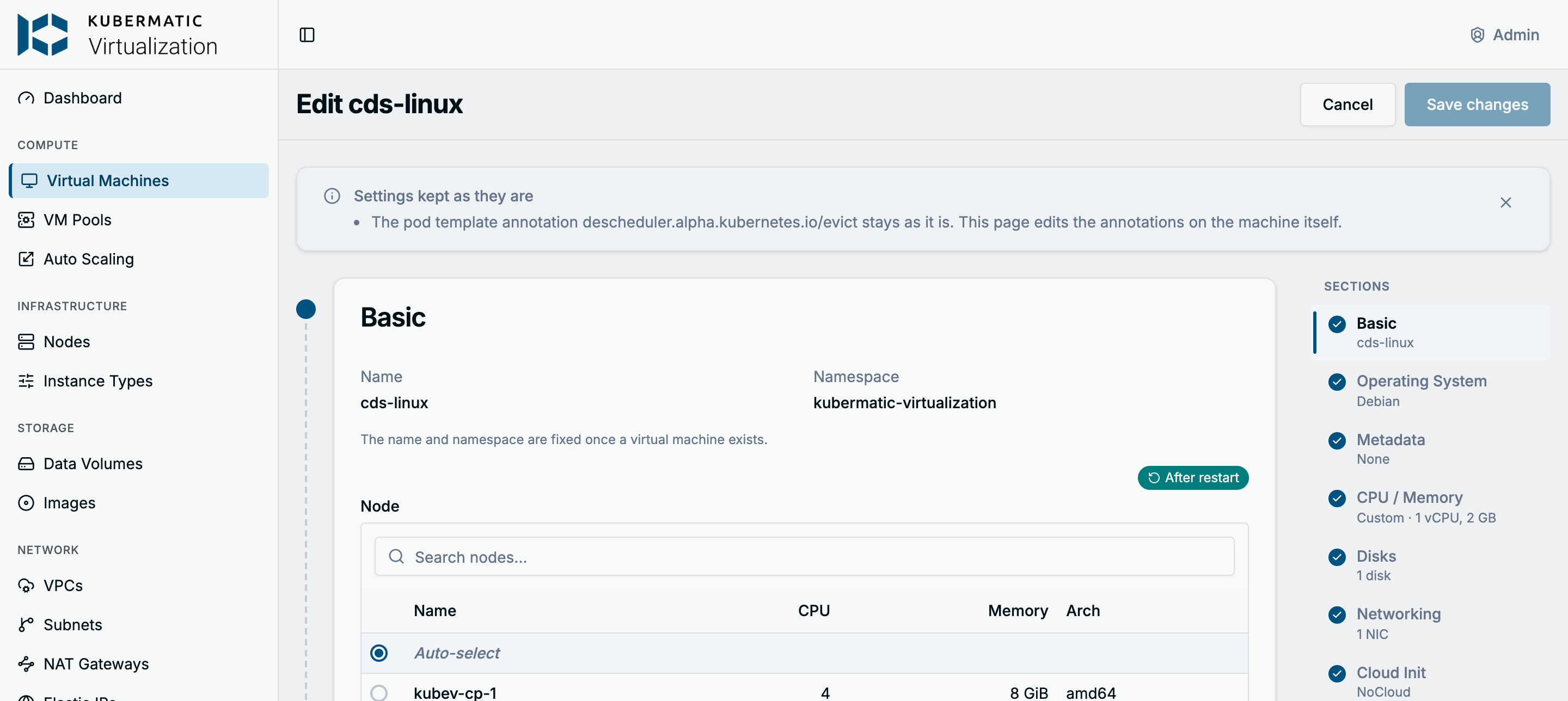
Edit in the header opens an edit page with the same sections as the form. Run strategy, node, preset, labels, size, GPUs, priority class, firmware and NICs can be changed; the name and namespace cannot. Disks are managed on the VM’s Disks tab, and cloud-init is read-only because it only runs on the first boot. Changes that only apply after a restart are marked as such, and saving them on a running VM offers to restart it.
Troubleshooting
| Message | What to do |
|---|---|
Below the preset minimum (...) on the VM Type or the custom size | Pick a larger instance type or size, or choose None (manual configuration) as the preset. |
VM "<name>" already exists | Choose another name. |
DataVolume "<name>" already exists with a different configuration | A deleted VM of the same name left its disk behind. Delete it under Storage > Data Volumes, or use another VM name. |
| Cannot be scheduled on the VM’s page | Read the scheduler message and the likely causes. For instance type mismatches, enable the missing node feature or change the type with Edit. |
| The status icon keeps spinning (Provisioning) | The DataVolume is still importing the image. Follow it under Storage > Data Volumes; check the image URL and the storage class when it does not progress. |